2024年6月

一、背景

21号夏至这天,刚好请了天假,下午4点左右接到领导电话说是断网了。

想到周四的时候中午11点也出现了断网,通过华三的路由器界面可以看到WAN口显示未连接。到了机房之后,调整了下网线后恢复了。于是,跟领导说弄下网线,但是没有恢复。怀疑是移动的光猫问题,尝试重启后,依然不行。

考虑到马上就要下班了,跟领导说先让大家用手机热点。过了十分钟,想到是否可以重启路由器呢。于是,跟领导说了想法,过了好几分钟,没想到恢复了。

想到路由器的不稳定,是否可以搞一搞呢?替换下路由器?

二、更换设备

说搞就搞。带上panabit ax50c开搞。

配置主要包括出口地址、内网地址、内网DHCP(包括定制DHCP)、默认策略路由、定制策略路由等。

三、处理问题

虽然做了大量努力,还是在周一遇到了些问题。

问题一:域内NAT(回流问题)
之前的H3C路由器支持回流,内网使用公网映射端口进行访问是可以的。但是panabit需要配置一下

floweye nat config nhinstall=1

该问题导致财务无法通过公网映射服务访问内部金蝶系统。

问题二:IP地址冲突

刚好有个设备与服务器的ip地址有了冲突,除了补充绑定ip地址与mac地址外,可以在终端测进行

arp -d 192.168.124.92
arp -s 192.168.124.92 76-ea-3c-bc-e0-ad

该问题导致容器服务运行失败,以及研发无法连接数据库。

问题三:人力无法访问网站

这个问题比较特殊,但是比较有意思。为了减少机房热量对俺的工控机影响,将其拿到了办公室吹空调。该工控机里面部署了socks代理服务,用于人力使用该服务访问相关网站。由于搬迁过程中服务没有启动所以造成socks无法使用。说起来复杂,本来在总体网络路由层面做了适配,相关网站走内网vpn隧道到通过公网服务器进行访问,但是该机器偏偏开启了代理功能。来回关了三次,每次关闭之后会自动打开。后来搜索了一下,原来人力电脑里有特殊的软件,该软件会读取当前代理pac文件并加入自己的代理,而自己代理用于通过加密隧道访问其服务器。

该问题排查了一大圈才发现原来还有这种操作。

四、事后总结

造成断网的原因大概是设备已长时间运行数年之久,且设备大概是十年前的设备,加之机房温度高导致老化加快,运行不稳定。

更换设备过程中,漏了一些没有固定IP地址的DHCP静态配置,给后来的使用带来了一定的困扰。

没有回流设置带来了一些问题,以及服务没有及时启动带来的问题,都给日常的工作增加了不少工作量。
直接查看

cat /sys/firmware/devicetree/base/model ; echo

看cpu

root@raspberrypi:/home/admin# cat /proc/cpuinfo | grep -i model
Model        : Raspberry Pi 4 Model B Rev 1.1

看cpu并且结合

root@raspberrypi:/home/admin# cat /proc/cpuinfo | grep -i revision
CPU revision    : 3
CPU revision    : 3
CPU revision    : 3
CPU revision    : 3
Revision    : c03111

参考:https://oastic.com/posts/how-to-know-which-raspberry-do-you-have/

Code    Model    Revision    SoC    RAM    Manufacturer
900021    A+    1.1    BCM2835    512MB    Sony UK
900032    B+    1.2    BCM2835    512MB    Sony UK
900092    Zero    1.2    BCM2835    512MB    Sony UK
900093    Zero    1.3    BCM2835    512MB    Sony UK
9000c1    Zero W    1.1    BCM2835    512MB    Sony UK
9020e0    3A+    1.0    BCM2837B0    512MB    Sony UK
920092    Zero    1.2    BCM2835    512MB    Embest
920093    Zero    1.3    BCM2835    512MB    Embest
900061    CM    1.1    BCM2835    512MB    Sony UK
a01040    2B    1.0    BCM2836    1GB    Sony UK
a01041    2B    1.1    BCM2836    1GB    Sony UK
a02082    3B    1.2    BCM2837A0/B0    1GB    Sony UK
a020a0    CM3    1.0    BCM2837    1GB    Sony UK
a020d3    3B+    1.3    BCM2837B0    1GB    Sony UK
a02042    2B    1.2    BCM2837    1GB    Sony UK
a21041    2B    1.1    BCM2836    1GB    Embest
a22042    2B    1.2    BCM2837    1GB    Embest
a22082    3B    1.2    BCM2837A0/B0    1GB    Embest
a220a0    CM3    1.0    BCM2837    1GB    Embest
a32082    3B    1.2    BCM2837A0/B0    1GB    Sony Japan
a52082    3B    1.2    BCM2837A0/B0    1GB    Stadium
a22083    3B    1.3    BCM2837A0/B0    1GB    Embest
a02100    CM3+    1.0    BCM2837B0    1GB    Sony UK
a03111    4B    1.1    BCM2711    1GB    Sony UK
b03111    4B    1.1    BCM2711    2GB    Sony UK
b03112    4B    1.2    BCM2711    2GB    Sony UK
b03114    4B    1.4    BCM2711    2GB    Sony UK
c03111    4B    1.1    BCM2711    4GB    Sony UK
c03112    4B    1.2    BCM2711    4GB    Sony UK
c03114    4B    1.4    BCM2711    4GB    Sony UK
d03114    4B    1.4    BCM2711    8GB    Sony UK
c03130    Pi 400    1.0    BCM2711    4GB    Sony UK

System Information & RAID Utility

This utility is designed to gather and display system information, RAID configuration, and IPMI (Intelligent Platform Management Interface) details in an efficient and user-friendly manner.

Features

  • Gather RAID information and configurations.
  • Retrieve and display detailed RAID controller and drive information.
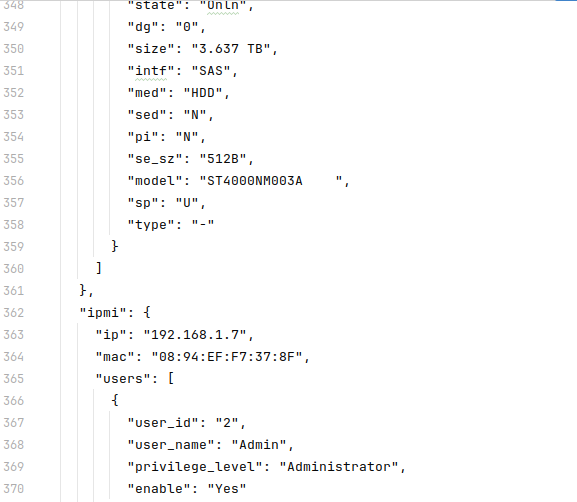
  • Collect IPMI information, including IP, MAC address, user list, and more.
  • Cross-platform support with specific handling for Windows systems.

    Prerequisites

    Before you run the utility, ensure that you have the following installed on your system:

  • storcli or storcli64 (for RAID operations)
  • ipmicfg or equivalent IPMI tool supported by your hardware.

    Getting Started

    To get started with this tool, clone the repository to your local machine:

git clone <https://github.com/your-username/system-info-raid-utility.git>
cd system-info-raid-utility
Usage
To run the utility and display the system information, use the following command:

go run main.go
Ensure that the storcli and ipmi tools are in your system's PATH or modify the utility to point to their locations.

下载

https://d2.sddts.cn/d/download/jingan/dmidecode/jingan_linux_amd64.tar.gz
https://d2.sddts.cn/d/download/jingan/dmidecode/jingan_dmidecode_windows_amd64.exe

效果

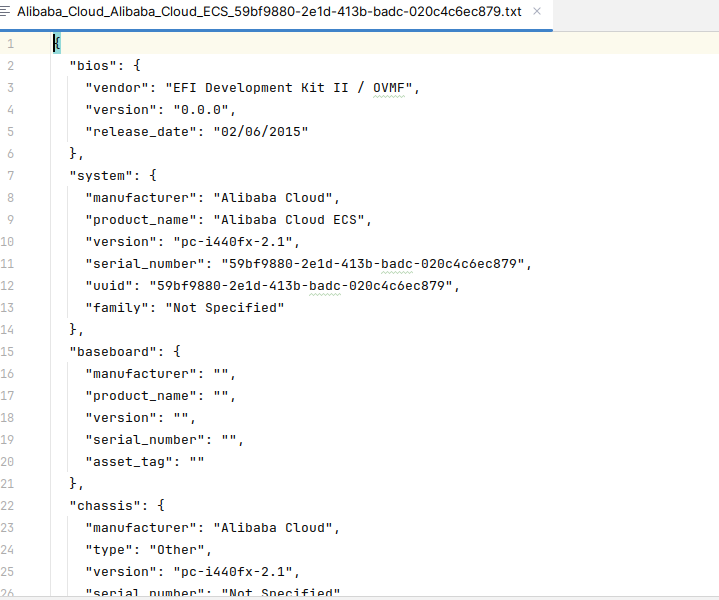
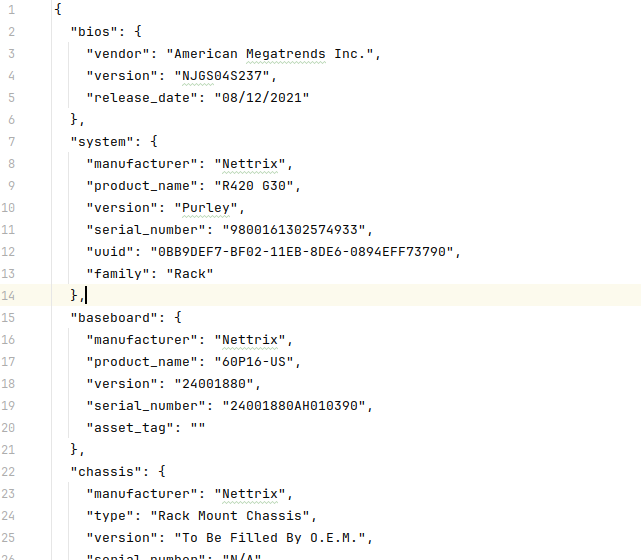
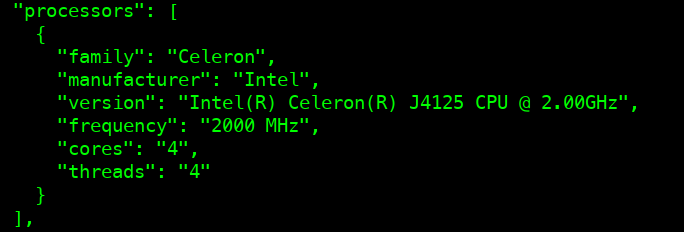
2024-06-18T05:58:51.png
2024-06-18T05:59:01.png
2024-06-18T05:59:12.png
2024-06-18T05:59:29.png

几颗cpu、型号是啥、核心数、线程数是啥。

2024-06-18T06:40:59.png

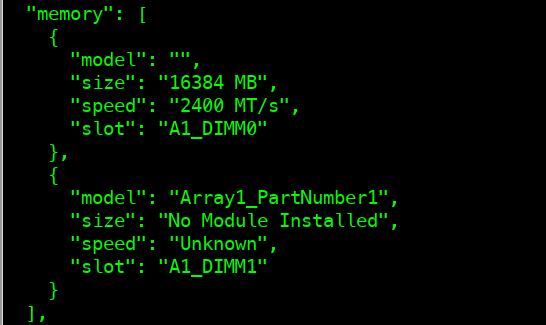
内存条有几个槽,插了几个,型号是啥、SN是啥,容量多大、位置在哪儿。

2024-06-18T06:41:18.png

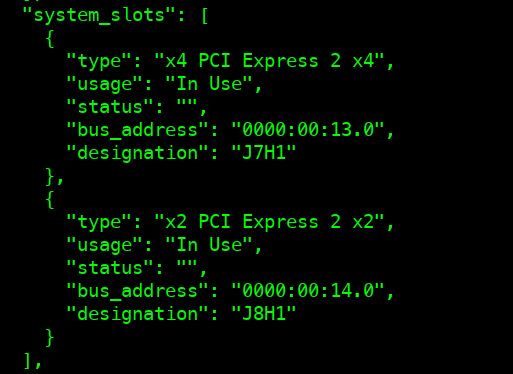
通过dmi获取信息后,可以在不拆开机箱的情况下 ,知道pci插槽有几个,是啥样的。

2024-06-18T06:41:30.png

一些有用的git

初始化本地目录

git init
git branch -M mater main

将本地git项目与远端git仓库挂载

git remote add origin 远程仓库地址
git branch --set-upstream-to=origin/main main

强制拉取

git pull origin main --allow-unrelated-histories

远程仓库地址也可以是一个ssh(未验证)

git remote add origin username@hostname:/path/to/remote/repository.git

要部署和配置 Monitorix 来监控 CPU、硬盘、内存、GPU 等资源的使用情况,并设置邮件告警,请按以下步骤操作:

1. 安装 Monitorix

在 Ubuntu 上安装

  1. 更新软件包列表:

    sudo apt update
  2. 安装 Monitorix:

    sudo apt install monitorix

在 CentOS/RHEL 上安装

  1. 安装 EPEL 仓库:

    sudo yum install epel-release
  2. 安装 Monitorix:

    sudo yum install monitorix

2. 配置 Monitorix

  1. 打开 Monitorix 配置文件进行编辑:

    sudo nano /etc/monitorix/monitorix.conf
  2. 配置系统资源监控部分:

    # 确保以下部分已启用 (值为 'Y')
    <graph_enable>
        ...
        cpu = y
        disk = y
        memory = y
        gpu = y
        ...
    </graph_enable>
  3. 配置邮件告警:

    <mail>
        enabled = y
        from = monitorix@example.com
        to = alert@example.com
        ...
        # 配置告警条件
        <alerts>
            enabled = y
            ...
            <cpu>
                alert = 90
                ...
            </cpu>
            <disk>
                alert = 90
                ...
            </disk>
            <memory>
                alert = 90
                ...
            </memory>
            <gpu>
                alert = 90
                ...
            </gpu>
        </alerts>
    </mail>

3. 配置邮件传输代理(MTA)

Monitorix 需要一个邮件传输代理来发送告警邮件。你可以使用 Postfixsendmail 等。

安装并配置 Postfix

  1. 安装 Postfix:

    sudo apt install postfix
  2. 配置 Postfix:

    sudo dpkg-reconfigure postfix

    选择 "Internet Site" 并输入你的域名。

  3. 编辑 Postfix 配置文件:

    sudo nano /etc/postfix/main.cf

    确保以下行已正确配置:

    myhostname = example.com
    mydestination = example.com, localhost.com, , localhost
    relayhost = 
  4. 重启 Postfix:

    sudo systemctl restart postfix

4. 启动和测试 Monitorix

  1. 启动 Monitorix 服务:

    sudo systemctl start monitorix
  2. 确保 Monitorix 服务在系统启动时自动启动:

    sudo systemctl enable monitorix
  3. 打开浏览器,访问 Monitorix 的 Web 界面:

    http://your_server_ip:8080/monitorix
  4. 测试邮件告警是否工作:

    • 手动调整告警阈值以触发告警,或
    • 使用命令行工具(如 stress)来模拟高负载情况。

示例:使用 stress 模拟 CPU 高负载

  1. 安装 stress 工具:

    sudo apt install stress
  2. 运行 stress 以模拟 CPU 高负载:

    stress --cpu 8 --timeout 60

Monitorix 配置完成后,你应该能够通过 Web 界面监控系统资源使用情况,并在达到设定阈值时收到邮件告警。

是的,Monitorix 支持配置使用 SMTP TLS 发送邮件。以下是如何在 Monitorix 配置文件中设置 SMTP TLS 的步骤:

1. 配置 Monitorix 使用 SMTP TLS

  1. 编辑 Monitorix 配置文件:

    sudo nano /etc/monitorix/monitorix.conf
  2. 找到邮件配置部分,并进行如下设置:

    <mail>
        enabled = y
        from = monitorix@example.com
        to = alert@example.com
        smtp_server = smtp.example.com
        smtp_port = 587
        smtp_user = your_username
        smtp_password = your_password
        smtp_tls = y
        ...
    </mail>
  • smtp_server: 你的 SMTP 服务器地址(例如:smtp.gmail.com)
  • smtp_port: 你的 SMTP 服务器端口(通常为 587 用于 TLS)
  • smtp_user: 你的 SMTP 账户用户名
  • smtp_password: 你的 SMTP 账户密码
  • smtp_tls: 是否启用 TLS(设置为 y

2. 重启 Monitorix 服务

编辑完成后,保存文件并重启 Monitorix 服务以使更改生效:

sudo systemctl restart monitorix

3. 验证配置

确保你已经正确配置了 SMTP 服务器的相关设置,并且 Monitorix 可以通过这些设置发送邮件。

4. 示例配置

以下是一个完整的示例配置:

<mail>
    enabled = y
    from = monitorix@example.com
    to = alert@example.com
    smtp_server = smtp.gmail.com
    smtp_port = 587
    smtp_user = your_gmail_username@gmail.com
    smtp_password = your_gmail_password
    smtp_tls = y
    ...
    <alerts>
        enabled = y
        ...
        <cpu>
            alert = 90
            ...
        </cpu>
        <disk>
            alert = 90
            ...
        </disk>
        <memory>
            alert = 90
            ...
        </memory>
        <gpu>
            alert = 90
            ...
        </gpu>
    </alerts>
</mail>

配置完成后,Monitorix 将使用 SMTP TLS 发送告警邮件。你可以通过测试邮件发送功能,确保配置正确并能够成功发送告警邮件。

首先,需要一个socks5的代理地址。
然后修改文件中的service部分,增加三行代理内容,然后重启docker服务。
2024-06-12T03:39:06.png

cat <<'EOF'>/usr/lib/systemd/system/docker.service
[Unit]
Description=Docker Application Container Engine
Documentation=https://docs.docker.com
After=network-online.target docker.socket firewalld.service containerd.service time-set.target
Wants=network-online.target containerd.service
Requires=docker.socket

[Service]
Type=notify
# the default is not to use systemd for cgroups because the delegate issues still
# exists and systemd currently does not support the cgroup feature set required
# for containers run by docker
ExecStart=/usr/bin/dockerd -H fd:// --containerd=/run/containerd/containerd.sock
ExecReload=/bin/kill -s HUP $MAINPID
TimeoutStartSec=0
RestartSec=2
Restart=always
Environment="HTTP_PROXY=socks5://192.168.124.139:47891"
Environment="HTTPS_PROXY=socks5://192.168.124.139:47891"
Environment="SOCKS_PROXY=socks5://192.168.124.139:47891"
Environment="NO_PROXY=localhost,127.0.0.0/8,192.168.0.0/16,172.16.0.0/12,10.0.0.0/8"


# Note that StartLimit* options were moved from "Service" to "Unit" in systemd 229.
# Both the old, and new location are accepted by systemd 229 and up, so using the old location
# to make them work for either version of systemd.
StartLimitBurst=3

# Note that StartLimitInterval was renamed to StartLimitIntervalSec in systemd 230.
# Both the old, and new name are accepted by systemd 230 and up, so using the old name to make
# this option work for either version of systemd.
StartLimitInterval=60s

# Having non-zero Limit*s causes performance problems due to accounting overhead
# in the kernel. We recommend using cgroups to do container-local accounting.
LimitNOFILE=infinity
LimitNPROC=infinity
LimitCORE=infinity

# Comment TasksMax if your systemd version does not support it.
# Only systemd 226 and above support this option.
TasksMax=infinity

# set delegate yes so that systemd does not reset the cgroups of docker containers
Delegate=yes

# kill only the docker process, not all processes in the cgroup
KillMode=process
OOMScoreAdjust=-500

[Install]
WantedBy=multi-user.target
EOF

systemctl daemon-reload
systemctl restart docker

或者直接使用如下命令:

sed -i '/\[Service\]/a Environment="HTTP_PROXY=socks5://192.168.124.139:47891"' /usr/lib/systemd/system/docker.service

sed -i '/\[Service\]/a Environment="HTTPS_PROXY=socks5://192.168.124.139:47891"'  /usr/lib/systemd/system/docker.service

sed -i '/\[Service\]/a Environment="SOCKS_PROXY=socks5://192.168.124.139:47891"' /usr/lib/systemd/system/docker.service

sed -i '/\[Service\]/a Environment="NO_PROXY=localhost,127.0.0.0/8,192.168.0.0/16,172.16.0.0/12,10.0.0.0/8"' /usr/lib/systemd/system/docker.service

/bin/cp /usr/lib/systemd/system/docker.service /etc/systemd/system/docker.service

注意,在systemd的各种配置优先级中,有如下规则

/etc/systemd/system/(优先级最高)
/run/systemd/system/
/usr/lib/systemd/system/(优先级最低)

参考:https://linux.do/t/topic/109710

演示视频

[vplayer url="https://d2.sddts.cn/d/download/jingan/serverandclient/serverandclcient-demo.mp4" /]

下载

下载地址

以下是服务端与客户端程序的 README 文档:

TCP 服务端与客户端程序

简介

这是一个基于 TCP 协议的服务端和客户端程序。服务端监听指定的端口,接受客户端连接,并接收和处理客户端发送的系统信息和命令。客户端会发送系统信息,包括 CPU 信息、内存信息、磁盘信息、网卡 MAC 地址等,定时发送 PING 信息以保持连接。

服务端

功能

  1. 接受客户端连接,并接收客户端发送的系统信息。
  2. 定时每 10 秒钟发送一次 PING 给在线客户端,检测连接状态,异常则从列表中删除该客户端。
  3. 提供命令行交互界面,支持查看连接的客户端列表,搜索客户端信息等功能。

编译与运行

  1. 编译服务端程序:

    go build -o server server.go
  2. 运行服务端程序:

    ./server -h <监听IP> -p <监听端口>

    参数说明:

    • -h:监听的 IP 地址,默认为 0.0.0.0
    • -p:监听的端口,默认为 4000

示例命令

  1. 列出所有连接的客户端:

    list
  2. 搜索客户端信息:

    search <关键字>
  3. 连接到指定客户端:

    connect <客户端编号>

客户端

功能

  1. 连接到指定的服务端地址和端口。
  2. 发送系统信息,包括 CPU 信息、内存信息、磁盘信息、物理网卡的 MAC 地址等。
  3. 接收并执行服务端发送的命令,并返回命令执行结果。

编译与运行

  1. 编译客户端程序:

    go build -o client client.go
  2. 运行客户端程序:

    ./client -h <服务端IP> -p <服务端端口>

    参数说明:

    • -h:服务端 IP 地址,默认为 127.0.0.1
    • -p:服务端端口,默认为 4000

代码结构

服务端

  • server.go:服务端主程序,包含客户端连接管理、命令处理等功能。

客户端

  • client.go:客户端主程序,包含系统信息采集、命令接收与执行等功能。

示例

运行服务端

./server -h 0.0.0.0 -p 4000

运行客户端

./client -h 127.0.0.1 -p 4000

服务端命令行示例

> list
连接的客户端列表:
  客户端 1: 127.0.0.1:53251, 系统信息: CPU: ...

> search Intel
搜索结果:
  客户端 1 系统信息:
    IP地址和端口: 127.0.0.1:53251
    CPU: Model: Intel(R) Core(TM) i7-8550U CPU @ 1.80GHz, ...
    Memory: 16384MB
    Disk: 512GB
    ...

通过以上步骤和命令,您可以编译并运行该 TCP 服务端与客户端程序,并使用命令行接口与客户端进行交互。

dockerpull

dockerpull 是一个使用 Go 语言编写的命令行工具,用于简化从 Amazon Elastic Container Registry (ECR) 中拉取 Docker 镜像的过程。它提供了以下功能:

  1. 通过命令行参数指定要拉取的镜像名称或 Docker Compose YAML 文件。
  2. 自动添加 public.ecr.aws/dockerpublic.ecr.aws 前缀到镜像名称,以便从 Amazon ECR 中拉取镜像。
  3. 如果使用 public.ecr.aws/docker 前缀拉取失败,会自动尝试使用 public.ecr.aws 前缀进行拉取。
  4. 拉取成功后,使用 docker tag 命令去掉镜像名称中的前缀,以便在本地使用原始的镜像名称。
  5. 使用 docker rmi 命令删除带有前缀的镜像,以节省本地存储空间。
  6. 支持解析 Docker Compose YAML 文件,并自动拉取文件中定义的所有服务的镜像。

使用方法

  1. 拉取单个镜像:

    dockerpull <image>

    例如:

    dockerpull nginx

    dockerpull library/nginx

2024-06-11T07:00:32.png

  1. 拉取 Docker Compose YAML 文件中定义的所有镜像:

    dockerpull <file.yml|file.yaml>

    例如:

    dockerpull docker-compose.yml

安装

  1. 确保系统中已安装 Go 语言环境。
  2. 下载 dockerpull 的源代码。
  3. 使用以下命令编译源代码:

    go build -o dockerpull
  4. 将编译生成的 dockerpull 可执行文件移动到系统的 PATH 目录中,以便在任何地方都可以使用该命令。

依赖

dockerpull 依赖以下 Go 包:

  • fmt:用于格式化和输出信息。
  • os:用于访问命令行参数和执行系统命令。
  • os/exec:用于执行 Docker 命令。
  • strings:用于处理字符串操作。
  • gopkg.in/yaml.v2:用于解析 YAML 文件。

确保在编译之前已经安装了这些依赖包。

直接下载使用

linux amd64

windows x64

osx x64 intel

osx x64 arm

注意事项

  • 使用 dockerpull 工具需要在系统中安装并配置好 Docker。
  • 确保在运行 dockerpull 命令时具有足够的权限执行 Docker 命令。
  • 在拉取镜像时,需要确保机器可以访问 Amazon ECR 并具有相应的权限。

这是一份 dockerpull 工具的简要介绍,你可以根据需要进一步完善和扩展该文档。

早晨,陆续收到了一些告警,说是一个http访问异常。单看这个http的告警,可能是由于监测机器的并发大造成偶尔无法进行域名解析,一会儿就恢复了,也就没有进一步 观察。

下午,领导说客户说访问有点异常,让看下。

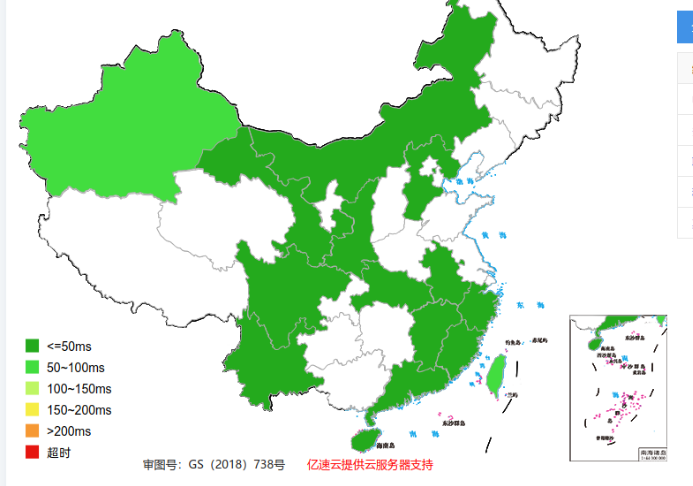
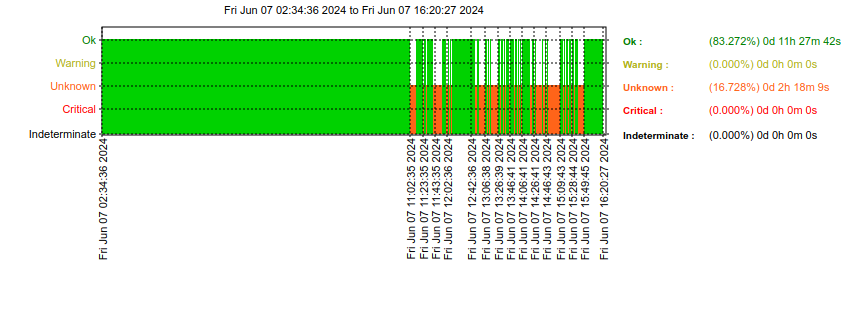
对域名检测,访问连通性跟狗啃似的。

2024-06-07T08:23:23.png

解析www子域名是可以的。

2024-06-07T08:24:26.png

使用 dig进行trace,发下www可以,但是zc这个就不行了。
2024-06-07T08:25:26.png
2024-06-07T08:25:50.png

这时候,客户也反馈了,域名解析情况。看到只有一个www了。擦,莫非是用户手动删除了。

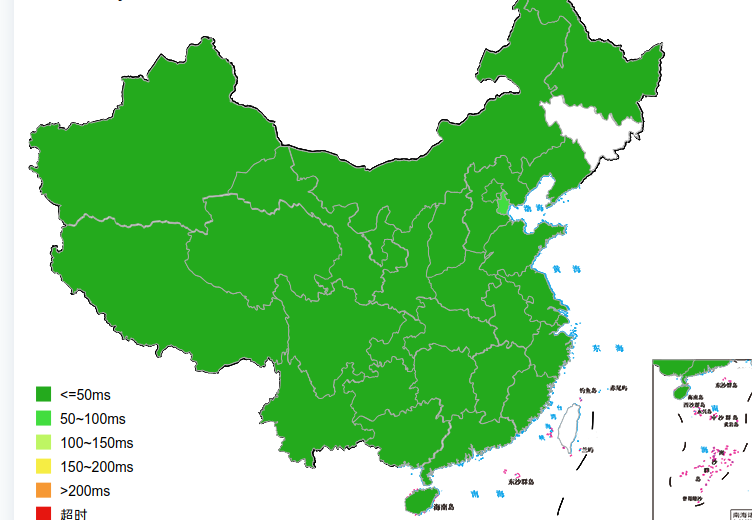
根据记录让用户恢复了zc的解析。然后可以看到一片绿了。

用户问还有没有其他子域名。这个域名除了我们作为乙方给开发的程序用之外,还有他们自己的系统。好像用户那边不太好找。

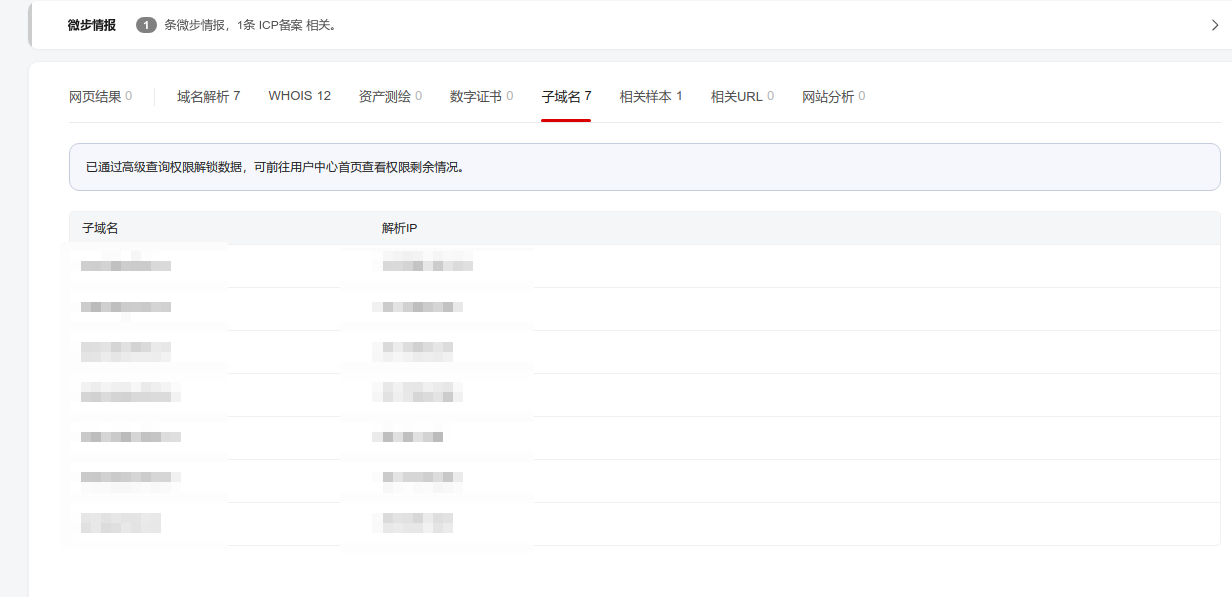
就用微步查询了一下域名的解析历史记录,并使用高级功能查看到了子域名以及解析结果。
2024-06-07T08:27:23.png

后来,查了一下nagios的记录,发现从今天11:00左右开始的。大概率是人为的了。

2024-06-07T08:28:42.png

有个问题?
一般A记录只是10分钟,为啥对方删除了之后,还是可以解析到呢,而且有的地方可以解析,有的地方就不行?